Choosing a Connection for Nodarama Verbatim
Choose how you want AI to connect with Nodarama Verbatim.
Nodarama Verbatim can receive structured code changes in several ways. The best choice depends on whether you want the strongest connection, the easiest browser workflow, a local environment, or full manual control.
TLDR
Choose Amp with ChatGPT if you want the strongest connection.
Use Aux with Chrome to support ANY AI and the easiest browser workflow.
Combine a Local LM with powerful hardware for a localized environment.
Use Manual if you want zero setup and full control.
Connection options
| Name | Type / description | Main benefits | Main tradeoffs |
|---|---|---|---|
| Amp | ChatGPT Agent / Custom GPT connection | + Strongest connection + Two-way communication + Can view project code directly + Best drift reduction + Remote use when Verbatim is running |
- More setup - Requires tunnel/open-port planning - Currently ChatGPT-only - No separate interface outside ChatGPT and Verbatim |
| Aux | Chrome browser extension for AI chat workflows | + Easiest browser workflow + Supports ANY AI used in Chrome + Watches chats for code changes + Prepares RecordingSheets automatically + Preview and correct before sending |
- Currently Chrome-only - Mostly one-way - Project details may need to be pasted into the AI chat |
| Local LM | Local model through LM Studio or similar | + Works inside Verbatim + Helps with real-time corrections + Useful anti-drift support + Can act as a backup model + Can become a primary model with strong hardware |
- Hardware dependent - Requires LM Studio or similar - Powerful coding models need stronger GPU/processor - If used as the primary model, it is no longer acting as backup |
| Manual | Copy/paste RecordingSheet workflow | + Zero setup + Works with any AI + Fully reviewable + Fully logged + Maximum control |
- More manual effort - No automatic drift reduction |
Recommended combination
A Local LM is recommended even if you choose Amp or Aux.
Small local models can help with real-time corrections, anti-drift checks, formatting, and minor repair tasks. These support tasks can work on many machines without heavily affecting overall system performance.
Using a Local LM as your main coding engine is different. Larger, more capable models require stronger hardware. See the AI and performance guidance below before relying on a local model as your primary coding assistant.
Setting up Amp
Use Amp when you want ChatGPT to communicate with Verbatim through a bridge.
- Download and install Nodarama Verbatim from the Nodarama site.
- Open the Amp / ChatGPT Agent instructions from the Nodarama download or setup area.
- Set up a secure tunnel using Ngrok or a similar service.
- Ask ChatGPT for current Ngrok setup steps instead of relying on old screenshots or outdated menus.
External tools can change their installer, dashboard, login flow, pricing, or tunnel setup. Asking GPT for current instructions keeps the setup guide from becoming stale.
I am setting up a bridge to connect my local system, Nodarama Verbatim, to ChatGPT using Ngrok or a similar tunnel service.

Please give me step-by-step instructions to install, configure, and test Ngrok.

Before we begin, ask whether I am using Windows or macOS, and whether I already have Ngrok installed.

Please explain each step in beginner-friendly language and include any safety notes about exposing a local port to the internet.
Setting up Aux
Use Aux when you want the Chrome sidebar workflow for working with AI chats.
- Download Nodarama Aux from the Nodarama site when available.
- Install or load the Chrome extension as instructed in the download package.
- Open the Aux sidebar while using your AI chat.
- Use Aux to preview RecordingSheets, correct missing details, and send ready changes into Verbatim.
Aux is designed to support any AI you can use through Chrome, but it is mostly one-way. You may still paste project details into the AI chat when context is needed.
Setting up a Local LM
Use a Local LM when you want in-app AI support, local correction help, or a local-first environment.
- Install LM Studio or a similar local AI tool.
- Choose a small model for correction/support tasks, or a stronger model if your hardware can handle it.
- Start the local server/API in your local AI tool.
- Connect Verbatim to that local endpoint in settings.
LM Studio and similar tools can change over time. Ask GPT for current setup steps for your exact machine.
I am setting up a local language model for Nodarama Verbatim using LM Studio or a similar local AI tool.

Please give me step-by-step instructions to install LM Studio, download a suitable small model, start the local server/API, and connect it to Verbatim.

Before we begin, ask whether I am using Windows or macOS, what GPU/processor I have, and how much RAM/VRAM is available.

Please recommend a lightweight model for correction/support tasks and explain when stronger hardware is needed.
Using Manual mode
Use Manual when you want the simplest possible workflow.
- Ask any AI to prepare a RecordingSheet using the Verbatim contract.
- Review the structured request yourself.
- Paste or submit the RecordingSheet into Verbatim.
- Keep the same logged, surgical execution without adding extra connection tools.
Local AI tools
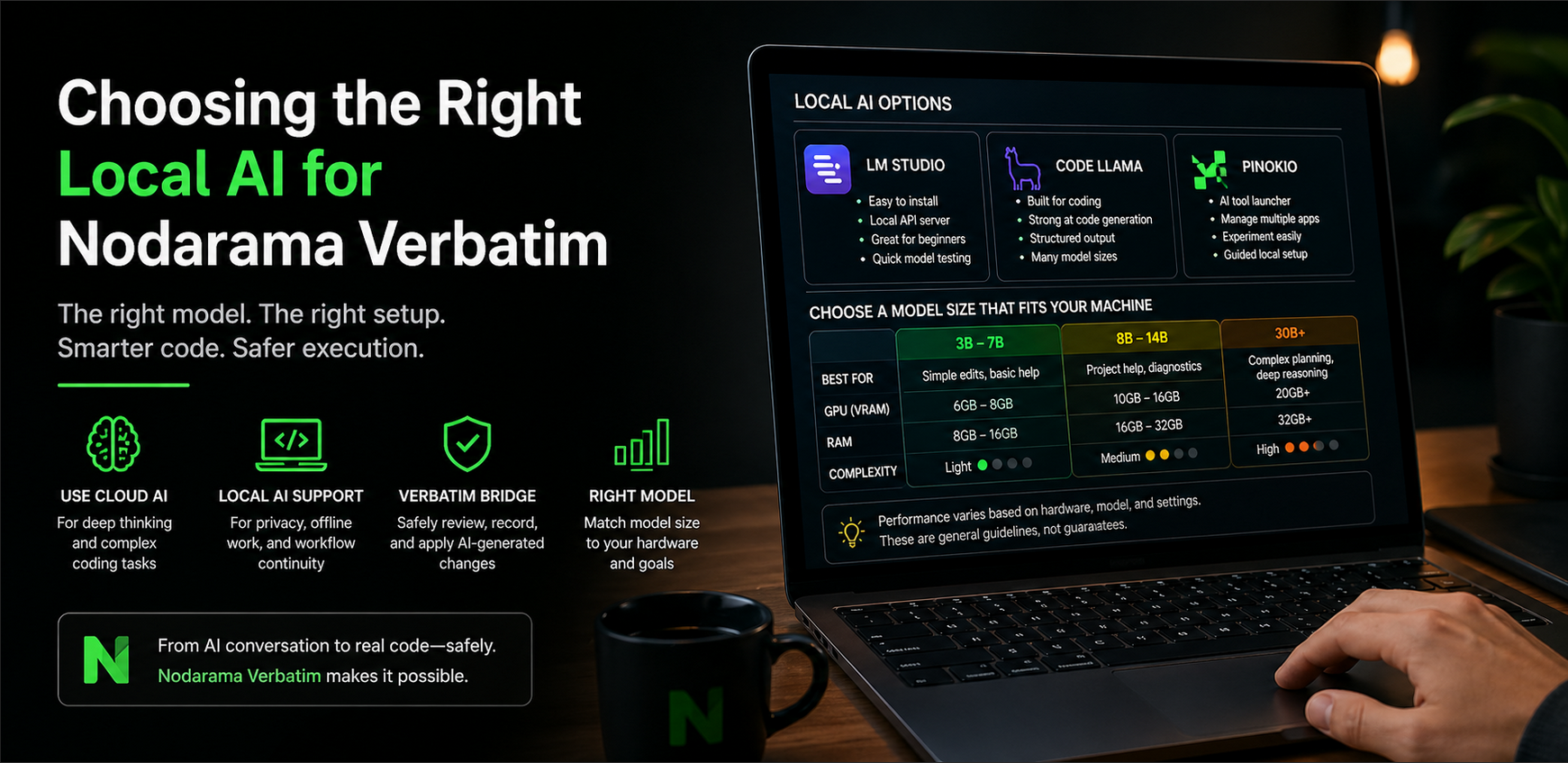
Model size, hardware, and expectations
| Model Size | Typical Hardware Ballpark | Good For | Limits |
|---|---|---|---|
| 3B–7B | 8–16GB RAM, modest CPU, entry GPU optional | Basic coding help, formatting, small edits, manifest corrections, short tasks | Weaker long-range reasoning and limited project-wide analysis |
| 8B–14B | 16–32GB RAM, stronger CPU, 10–16GB VRAM helpful | Better diagnostics, larger edits, project help, more reliable reasoning | May still struggle with large architecture or deep drift analysis |
| 30B+ | 32–64GB+ RAM, 20GB+ VRAM preferred | Advanced planning, architecture review, deeper diagnostics, longer context work | Slower, heavier, and not necessary for basic Verbatim workflows |
GPU and RAM guide
| System Class | VRAM | RAM | Expected Experience |
|---|---|---|---|
| Entry AI use | 6–8GB | 16GB | Smaller models, lighter coding workflows, basic Verbatim support |
| Mid-tier AI use | 10–16GB | 32GB | Stronger coding models, faster responses, better multi-file reasoning |
| High-end AI use | 20GB+ | 64GB+ | Larger models, stronger local reasoning, advanced Verbatim workflows |
| CPU-only use | None | 16–32GB+ | Possible for small models, but expect slower responses |
Examples often discussed in this range include RTX 3060 / RTX 4060 for entry use, RTX 3080 / 4070 Ti / 4080 for stronger local workflows, and RTX 4090 or workstation GPUs for larger models.
What changes inside Verbatim
| Local AI Strength | Useful Verbatim Tasks |
|---|---|
| Light | Simple corrections, formatting help, small edits, basic manifest preparation |
| Medium | Better diagnostics, cleaner manifests, project-aware suggestions, repeated issue detection |
| Strong | Drift analysis, architecture planning, multi-file reasoning, full local conversational coding |
Performance varies
Your exact results depend on cooling, storage speed, RAM speed, CPU efficiency, GPU efficiency, model quantization, background apps, and operating system optimization.
These are general guidelines, not guarantees. The best model is not always the biggest model. The best setup is the one that helps you move faster without creating friction.
Final takeaway
Start with the connection style that matches how you already work. Add local AI support when you want extra correction, backup, or drift reduction inside Verbatim.
Use Nodarama Verbatim to turn AI-generated ideas into real software safely.